Collection Runner
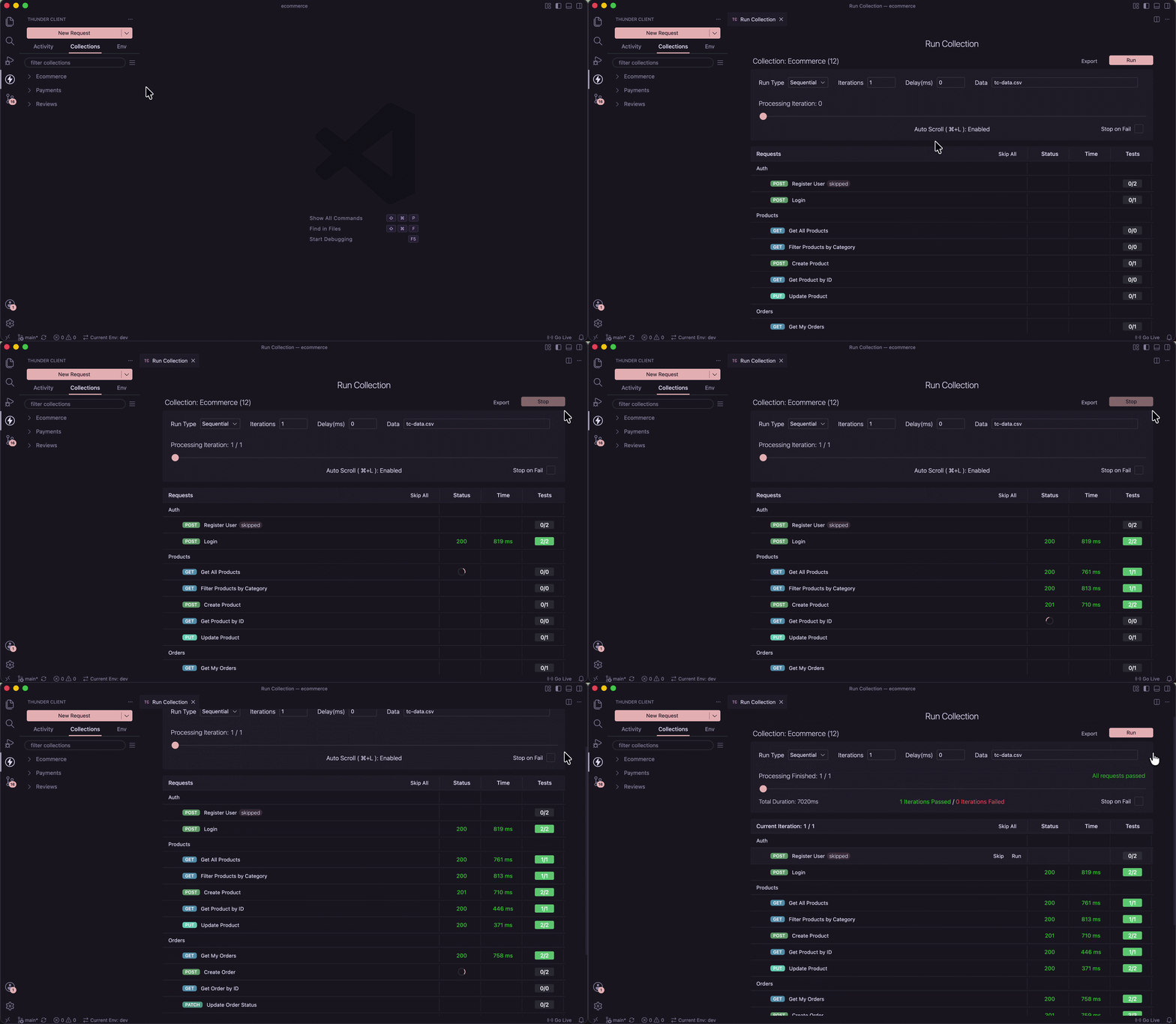
The Collection Runner executes all requests in a collection and displays results with pass/fail status, response times, and test assertions.
Video Guide
- Watch a walkthrough of the Collection Runner on YouTube .
How to Open
- Right-click on any collection and select Run All.
- The Run Collection view opens where you can configure and start the run.
Run Types
- Sequential — Runs requests one after another. Use this when requests depend on each other, such as logging in before creating a product or placing an order.
- Parallel — Runs all requests simultaneously. Use this for independent requests when speed matters.
In sequential mode, drag and drop requests in the collection to change the execution order.
Skip
- Click the Skip button on a request or folder to exclude it from the run.
- Skipped items remain in the collection and can be re-enabled at any time.
Data File
Use a data file when you want to test the same flow with different inputs — for example, registering multiple users in one run.
- Attach a CSV or JSON file to run the same request with multiple datasets.
- Column headers (CSV) or keys (JSON) become the variable names in your request body.
{{username}},{{email}}, and{{password}}are replaced with values from each row.
Example CSV
data.csv
username,email,password
alice,alice@example.com,Pass@123
bob,bob@example.com,Pass@456
carol,carol@example.com,Pass@789
Example JSON
data.json
[
  { "username": "alice", "email": "alice@example.com", "password": "Pass@123" },
  { "username": "bob", "email": "bob@example.com", "password": "Pass@456" },
  { "username": "carol", "email": "carol@example.com", "password": "Pass@789" }
]
Iterations
- Set the number of times the collection should run.
- Default is
1. - When using a data file, set iterations to match the number of rows — each row represents one iteration.
Delay
- Set a delay between requests in milliseconds.
- Default is
0(no delay).
Results
After the run, each request displays:
- Pass / Fail status
- Response time
- Test assertion results
Click any request in any iteration to view the full response body, headers, and individual assertion details.
Export Reports
- Click Export after the run to save results.
- Supported formats:
JSON,HTML,XML.
Video Guide
Watch a walkthrough of the Collection Runner, including how to configure runs, use data files, and review results.
Run from CLI
Collections can also be run from the terminal without opening the extension. See the CLI documentation for details.
Last updated on