Team Collaboration
Share requests, collections, and environments with your team through your own Git repository. There’s no separate sync service and no third-party cloud. Your API data lives alongside your code, works with any Git host, and follows the review process your team already uses.
Video guideTeam Collaboration walkthroughYouTubeHow It Works
- Save to your projectThunder Client saves collections to a thunder-tests folder in your Git repository.
- Commit and pushShare changes through branches and pull requests, like any other code.
- Teammates pullThe extension loads the latest collections automatically when the project opens.
Set Up Git Sync
Git Sync is configured in the Thunder Client settings in VS Code. Choose one of the two save locations below.
Open the Thunder Client settings
Open VS Code Settings and search for Thunder Client.

Choose where to save collections
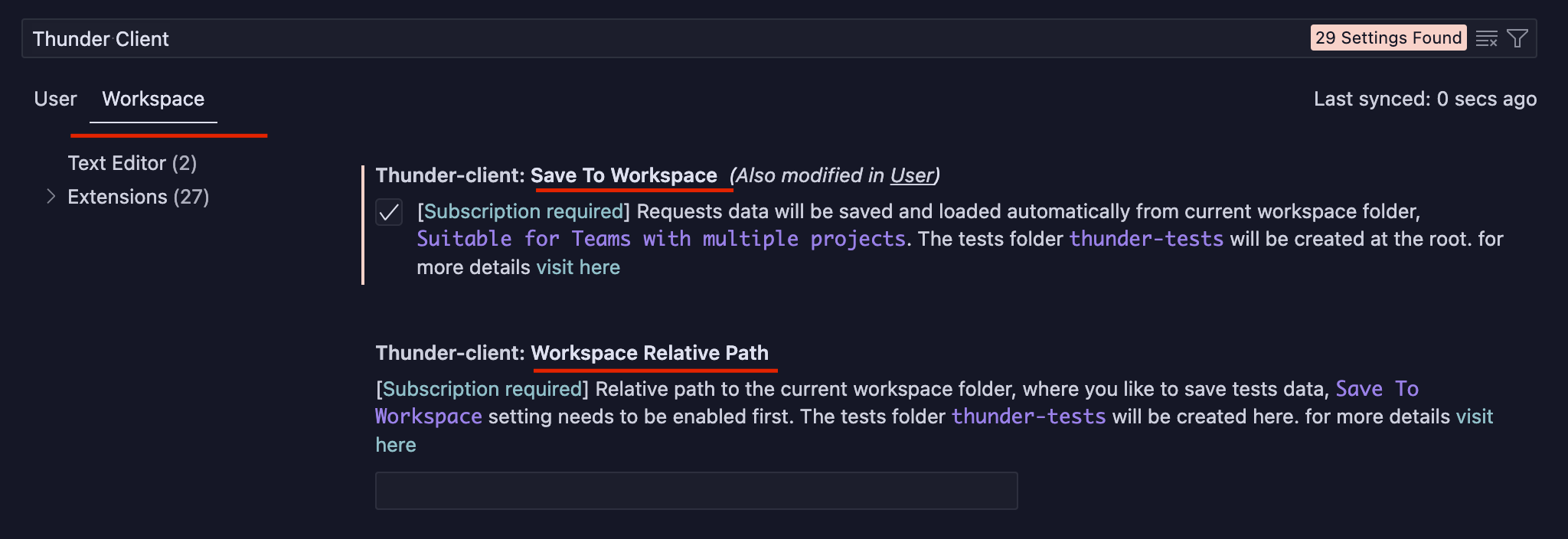
Save to Workspace (Recommended)
Enable Save to Workspace to store collections in a thunder-tests folder at the root of your workspace. Thunder Client loads them automatically whenever you open the project in VS Code. To use a different folder, see the Workspace Relative Path tab.
- Existing requests are not moved automatically
To include requests created before you enabled Git Sync, create a
thunder-testsfolder and copy thecollectionsandenvironmentsfolders from the default storage location into it. - If both settings are enabled
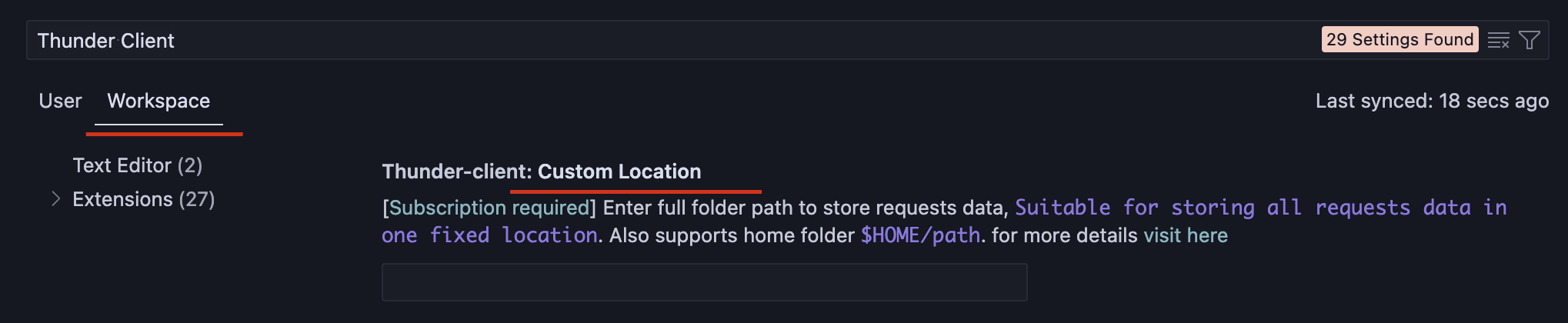
Save to Workspace takes precedence over Custom Location.
Choose a Database Format
Thunder Client can store collections in Git in two formats. v3 is the default; switch to v4 if several people edit the same collections at once.
- Easier to manage.
- Faster to load.
- Merge conflicts can be hard to resolve when many people edit the same collection.
- Better suited to large teams editing together.
- Easier to resolve merge conflicts.
- Better for version control.
- Creates many files, which adds management overhead.
- Deeply nested folders can cause long file path issues.
Switching Formats
Switch formats at any time from the VS Code command palette.
| Action | Command |
|---|---|
| Upgrade to Format v4 | Thunder Client: Upgrade Database to v4 |
| Downgrade to Format v3 | Thunder Client: Downgrade Database to v3 |